


Screen Recorder | Video Rec
4.8101.00 Reviews
App Specs
- Version
- 9.4
- Updated On
- License
- Free
- Downloads
- 100,000+
- Developer
- Infinity Tech Systems
- Categories
- Video Players & Editors
- Platform
- Android
Screenshots
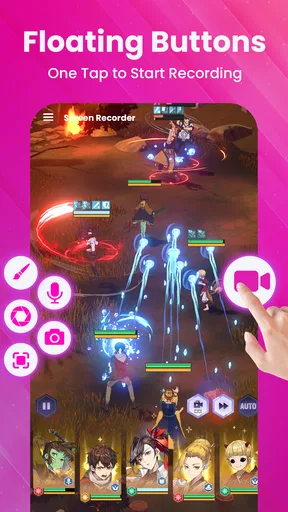
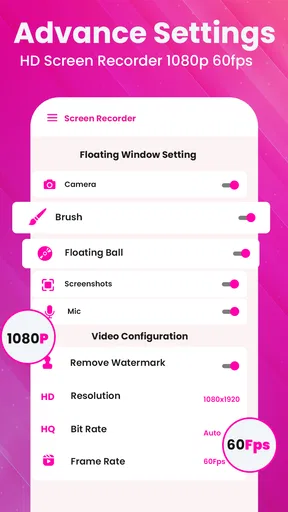
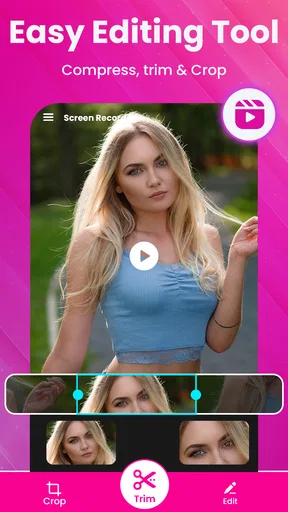
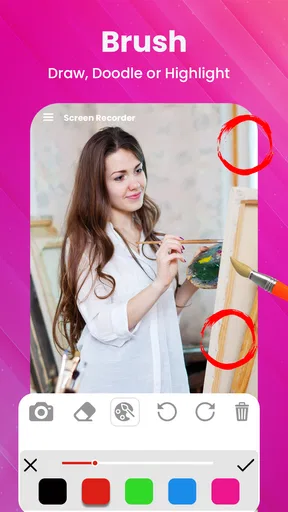
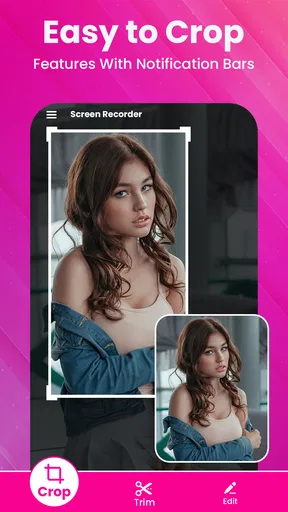
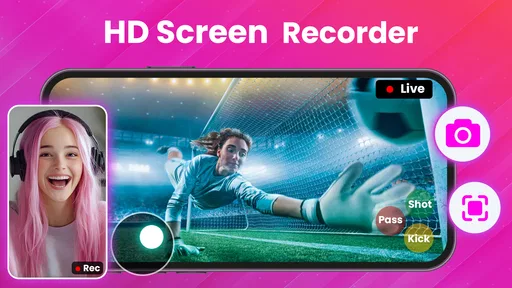
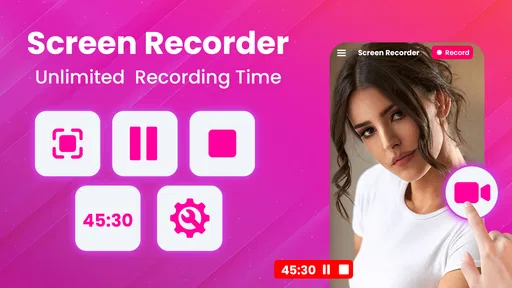
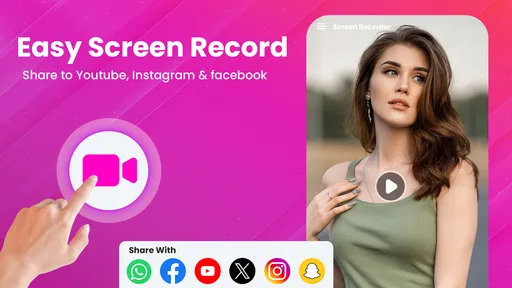
 Analysis by AppCompare
When I need to show someone what is happening on my Android screen, a written explanation is often slower than a short recording. That is where Screen Recorder | Video Rec has been useful for me. It is a free screen-recording app from Infinity Tech Systems, placed in the video players and editors category, and its main appeal is straightforward: capture the screen, include audio when needed, and create a clip that is easier to share than a long set of instructions.
I tested it with the kind of everyday tasks that make a recorder worthwhile: explaining a phone setting, demonstrating an app workflow, saving a short piece of on-screen activity, and preparing a visual guide for someone using the same device. The experience is not about turning a phone into a full editing studio. It is about making screen capture accessible, including for people who do not want to deal with root access or a complicated desktop setup.
My overall impression is that this is a practical recorder for shared Android use, but it still needs sensible boundaries. A recording can reveal notifications, account names, private messages, payment details, or anything else visible while the capture is running. The app makes recording convenient; it does not decide what should be recorded or shared. That distinction matters even more when a phone is used by several people in a household.
How it fits into a shared household phone
A realistic example is a family member trying to help someone else solve a phone problem. Instead of saying “open settings, scroll down, tap this, then look for that,” I can record the exact path once and send the clip. On a shared device, this can also help coordinate chores or routines that depend on an app: one person demonstrates the steps, another follows them later, and nobody has to remember a spoken explanation word for word.
The app is particularly useful when the recipient is not physically beside the phone. A short visual guide can show where a button appears, how a menu changes, or which part of a screen needs attention. This is more precise than a screenshot when the task involves several taps. I also find it helpful for documenting a temporary problem before it disappears, such as an unusual screen transition or an error that another person needs to see.
There is a trade-off with shared devices, though. A screen recorder sees the screen as I use it, so a casual demonstration can accidentally include unrelated information. Before pressing record, I close conversations, hide sensitive pages, and check which account is active. I also avoid navigating through banking, password, or private-message screens while recording. That preparation is not a special feature of this app; it is the basic habit that makes any recorder safer.
For younger users, the same workflow can be helpful for showing how an educational app works or explaining a creative project. However, I would not treat a general-purpose recorder as a substitute for supervision. The app has an Everyone content rating, but that does not mean every recording made with it is suitable for every viewer. The content comes from the screen and the person using it, so the household still needs to decide what may be captured and where it may go.
Worth Reading Before You Choose

EA SPORTS FC Mobile 26 Is a Bigger Football Game, but It Takes Time

Flipboard Shows What News Apps Must Do Beyond the Feed

Switching to Android Auto Means Rethinking Your Driving Routine

Google Calendar Makes a Crowded Week Easier to Manage

Ludo King Makes the Most of the Minutes Between Plans

Baby Panda World Brings Quick Play to Modern Phones, but Its Game Library Feels Busy
Starting with the right recording boundary
My first recommendation is to define the beginning and end of the task before starting. If I want to explain how to change one setting, I prepare the destination first, begin recording, perform only the necessary steps, and stop immediately after the useful result is visible. This produces a clearer clip and lowers the chance of exposing unrelated notifications or account information.
The app’s no-root positioning is important here. I do not need to modify the phone just to make a basic screen recording, which makes it more approachable for a shared household device where nobody wants to risk changing system behavior. That convenience also makes it suitable for someone who is comfortable using apps but not comfortable with technical Android modifications.
Before relying on a recording, I would check the device’s Android compatibility. The app requires Android 6.0 or later, so an older phone may not be a candidate. On a supported phone, I would still do a short test clip before recording something important. The test confirms that the screen appears as expected and that the chosen audio approach suits the task. A ten-second check is much less frustrating than discovering afterward that the explanation is silent or that the wrong screen was captured.
Audio deserves particular attention. The app is presented as a recorder with audio, which is useful for spoken instructions, demonstrations, and commentary. In practice, I would decide whether the clip needs my voice, the device’s sound, or simply a silent visual record. A spoken explanation can make a tutorial much easier to follow, but it can also reveal names, locations, or private details if I talk without planning. For a household guide, I usually keep the narration focused and avoid saying information that the viewer does not need.
Screen recordings can become large, especially when the source material is detailed or when the recording is intended to look sharp. The app’s summary points toward FHD and UHD capture, and that gives users room to prioritize clarity. My advice is not to choose the highest-looking option automatically. A short clip showing small text may benefit from greater detail, while a simple demonstration can be easier to handle at a more modest setting. Higher quality can mean more storage use and a heavier file to send, so the best choice depends on the purpose.
Coordinating recordings without crossing account boundaries
On a household phone, the hardest part is often not pressing record; it is knowing whose information is currently on screen. A device may contain several email accounts, social profiles, saved conversations, or work-related apps. Screen Recorder | Video Rec does not remove that responsibility. I treat the active account as part of the recording setup, just like I would check the camera frame before filming someone.
A useful routine is to announce the purpose of the clip before recording, even if the recording is only for another person in the home. For example, I might say that the video shows how to locate a particular setting and will be deleted after the other person has followed it. That small act of coordination prevents a helpful tutorial from being mistaken for a permanent archive. It also gives other household members a chance to object if their information could appear on screen.
When several people use one device, I prefer short, single-purpose clips instead of one long recording. A separate clip for changing a setting, checking an option, or explaining an app is easier to label and share with the right person. It also limits accidental exposure. If a recording is intended for one household member, I avoid including screens that concern another person’s account simply because they happen to appear during navigation.
The same principle applies to notifications. A message banner can interrupt a perfectly good tutorial and reveal more than expected. I make a habit of clearing or temporarily avoiding notification-heavy screens before recording. If the phone is being used by a child or another family member, this is worth explaining directly: a recording is not just a video of the app being demonstrated; it is a video of whatever the phone displays during that moment.
For remote help, I find the app more useful when the clip is treated as a disposable instruction rather than a permanent record. Once the recipient has completed the steps, there may be no reason to keep the file. This approach reduces clutter and limits the time that sensitive screen content remains in shared storage or messaging histories. It also keeps the app’s role clear: it helps communicate a process, not manage household accounts.
What the app does well for practical guidance
The strongest part of the experience is the directness. I can use it when a screenshot is too static and a full video editor would be excessive. A screen recording shows the order of actions, which is exactly what many support questions need. That makes it a good fit for helping someone find a setting, demonstrating a feature in an app, or explaining a sequence that would be difficult to describe in text.
The free price lowers the barrier to trying it, while optional in-app purchases range from $4.99 to $29.99 per item. I would not make a purchase simply because I need one basic recording. I would first confirm that the free experience handles the type of capture I actually need, then decide whether any paid option offers a meaningful improvement for my workflow. For occasional household use, the free starting point is the important part; frequent creators may evaluate the paid choices differently.
Its public reception is also encouraging. The app has a 4.8 average from around 414 ratings, with more than a hundred written reviews, and it has passed 100K+ installs. Those figures suggest that the basic idea is resonating with a substantial group of Android users. I still treat ratings as a starting signal rather than a guarantee, because recording quality can vary with the phone, the app being captured, available storage, and the user’s chosen settings.
The current version is 9.4, and the app was released on Jul 8, 2023. I mention that context because screen recording depends heavily on the Android environment. A recorder that feels smooth on one phone may behave differently on another, especially when the device is older, busy, or short on storage. Keeping the operating system and the recorder current is a sensible part of preparation, but I would still make a test recording before an important presentation or tutorial.
Where it is less suitable than other choices
I would not choose this app as my first option for a long-form production workflow. If I need a polished lesson with multiple scenes, elaborate transitions, detailed timeline editing, or a carefully mixed soundtrack, a dedicated editor or desktop tool is likely a better fit. Screen Recorder | Video Rec is most convincing at capture. It can help me obtain the raw material, but that does not automatically make it a complete production environment.
I would also think twice before using it for sensitive customer support or work demonstrations on a personal shared phone. The convenience of recording the screen can encourage people to move too quickly through private areas. In that situation, a managed work device or a purpose-built support process may offer better separation. The app is not the wrong tool because it lacks value; it is the wrong tool when the surrounding account and privacy requirements are more demanding than a casual recorder can address.
Another limitation is the need for discipline around file handling. A recording may be easy to create but still awkward to send if it is long or high quality. Before choosing UHD, I ask whether the recipient actually needs that level of detail. For small text or a visual demonstration, extra clarity can help; for a simple household reminder, it may only create a larger file. This is one of the less obvious decisions that affects the experience more than the recording button itself.
Audio can also create friction. Narrated instructions are useful, but household environments are not always quiet. A recording made near a television, conversation, or kitchen noise may be harder to understand than a silent clip with written guidance added elsewhere. If the message is important, I make a short audio test first. When the surroundings are too noisy, I would rather record the actions silently and explain them separately than keep a distracting soundtrack.
Age, trust, and responsible use
The Everyone rating makes the app approachable for a broad audience, but I would introduce it to younger users with clear rules. They should know that recording a screen can capture other people’s messages, names, photos, or account details without intending to. They should also understand that sharing a recording is different from showing someone the phone in person: once a file leaves the device, it may be copied or forwarded.
For parents or guardians, the most useful approach is conversation and review rather than assuming the app will enforce household boundaries. I would agree on what kinds of recordings are acceptable, who may receive them, and when old clips should be deleted. A child can use the app to explain a game setting, demonstrate schoolwork, or show a creative project, but the same tool can expose private conversations if used carelessly.
Trust works in both directions. Adults should avoid recording another household member’s private activity merely because the phone is shared, and younger users should be taught to pause before capturing someone else’s information. A simple rule helps: if the screen belongs to another person, ask before recording or sharing it. That rule is more dependable than relying on the app’s general simplicity.
I also appreciate that the app’s purpose is easy to explain. It is not presented as a hidden monitoring tool; it is a screen recorder for making visual demonstrations. That makes an open, agreed workflow possible. Everyone using the device can know when a recording is being made and why. On a shared phone, transparency is more valuable than squeezing every possible use out of the app.
My household verdict on Screen Recorder | Video Rec
After using it as a practical Android capture tool, I see Screen Recorder | Video Rec as a sensible choice for people who want quick screen demonstrations without root access or a complicated setup. It is especially useful for remote help inside a family, short tutorials, app walkthroughs, and visual explanations that would be frustrating to describe with text alone.
I would recommend it to a household that can establish simple recording habits: check the active account, close private screens, decide whether audio is necessary, choose quality according to the recipient, and stop as soon as the task is complete. Those steps make the app more useful and reduce the risks that come with recording a shared device.
I would skip it in favor of a more specialized workflow if my priority were advanced editing, professional collaboration, strict account separation, or long recordings that need extensive post-production. In those cases, the recorder is only one part of a larger system. For ordinary Android users, though, the free entry point, broad age rating, audio support, and focus on straightforward capture give it a clear place.
My recommendation is simple: use it as a focused communication tool, not as a passive record of everything happening on the phone. With that boundary in mind, it can turn a confusing sequence of taps into a short, useful explanation and make shared-device support much less stressful.
Pros
- Records screen activity smoothly for tutorials and demonstrations.
- Simple controls make starting and stopping recordings quick.
- Useful for capturing app behavior
- gameplay
- and troubleshooting steps.
- Supports recording with device audio for clearer video explanations.
- Recorded clips can be reviewed immediately after finishing.
Cons
- Recording quality may vary depending on the device’s performance.
- Long videos can consume considerable storage space.
- Some features may require in-app purchases or premium access.
- Audio recording can be affected by system and microphone restrictions.
- The app may increase battery usage during extended recordings.
FAQs for Screen Recorder | Video Rec
What is Screen Recorder | Video Rec used for?
Screen Recorder | Video Rec is designed to capture activity on your Android device as video. It can be useful for creating app tutorials, recording gameplay, saving video calls where permitted, or documenting steps when troubleshooting a problem. After recording, you can generally review the clip and share it through other apps, although the exact tools available may depend on the installed version and device compatibility.
Does Screen Recorder | Video Rec record audio as well as the screen?
The app may support audio recording alongside screen capture, but the available choices can vary by Android version, phone manufacturer, and application settings. Before starting, check whether you can select microphone audio, internal device sound, or both. Some apps and protected content may block internal audio capture, while microphone recording can also be affected by permission settings or other applications using the microphone.
Is Screen Recorder | Video Rec free to download and use?
Screen Recorder | Video Rec may be available as a free download, but users should review the listing and in-app screens carefully because free versions can include advertising, optional purchases, or feature limitations. Restrictions may apply to recording quality, editing tools, watermark removal, or advanced settings. Pricing and included features can change, so confirm the current details before downloading or subscribing.
Will Screen Recorder | Video Rec work on every Android phone?
The basic recording function should work on many relatively recent Android devices, but performance is not identical across all phones and tablets. Android version, available storage, processor speed, screen resolution, and manufacturer restrictions can affect results. Older or less powerful devices may produce dropped frames, overheating, or recordings that stop unexpectedly. Check the app’s current compatibility requirements before installation.
Are there privacy or security concerns when using the app?
Screen recording can capture sensitive information such as messages, passwords, notifications, payment details, and private conversations, so use Screen Recorder | Video Rec carefully. Grant only the permissions that are necessary and avoid recording confidential content. If microphone, storage, or notification access is requested, review why it is needed. Also remember that recording calls, meetings, or other people may require their consent or be restricted by local law.


